Q: How to export stock data on MC Web?
A: 1. Click the website: web.mc.app on your computer
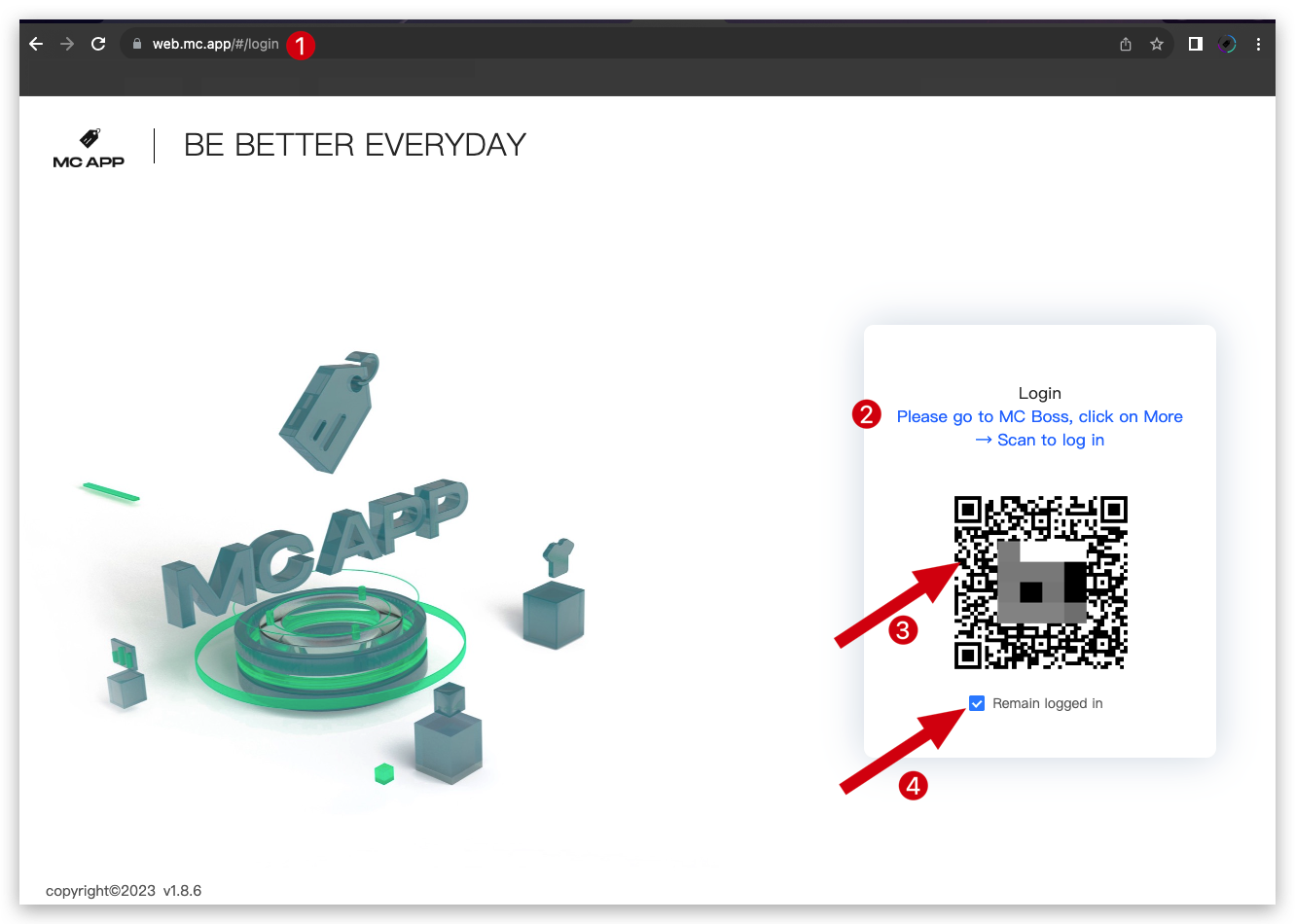
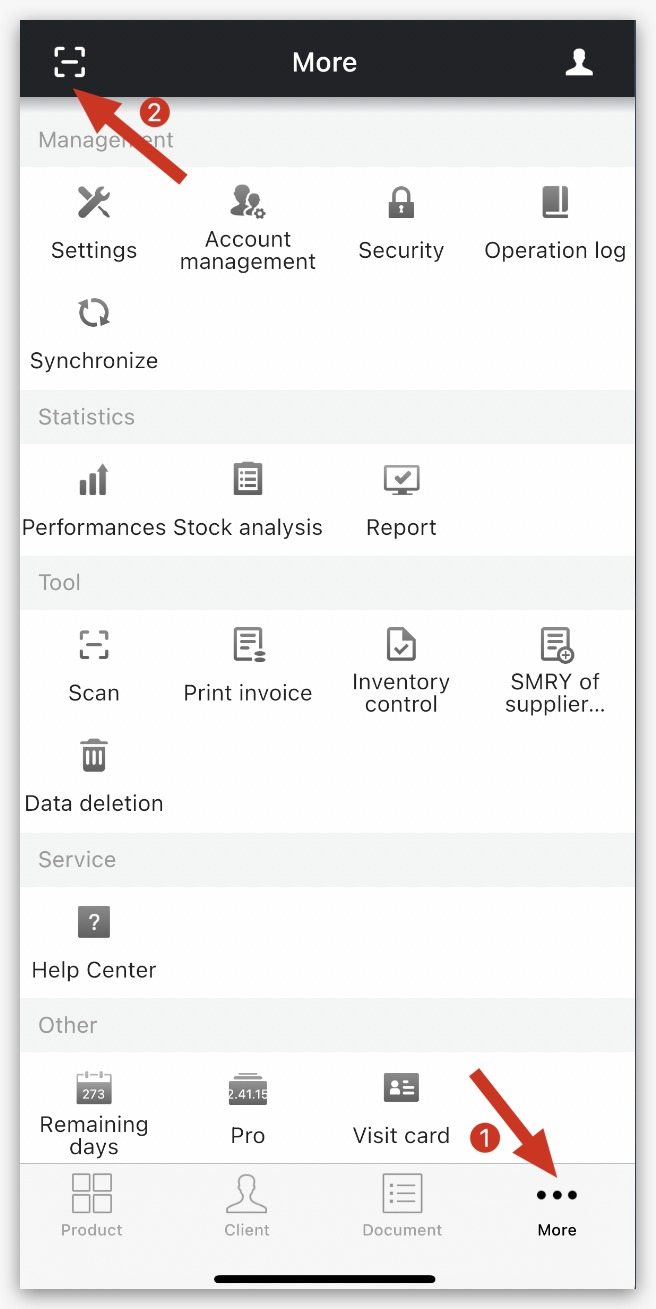
2. Open MC Boss → More → Scanner(on the top left corner)→ Scan the QR code on the website to log in → Click "Remain logged in" if needed on MC Web
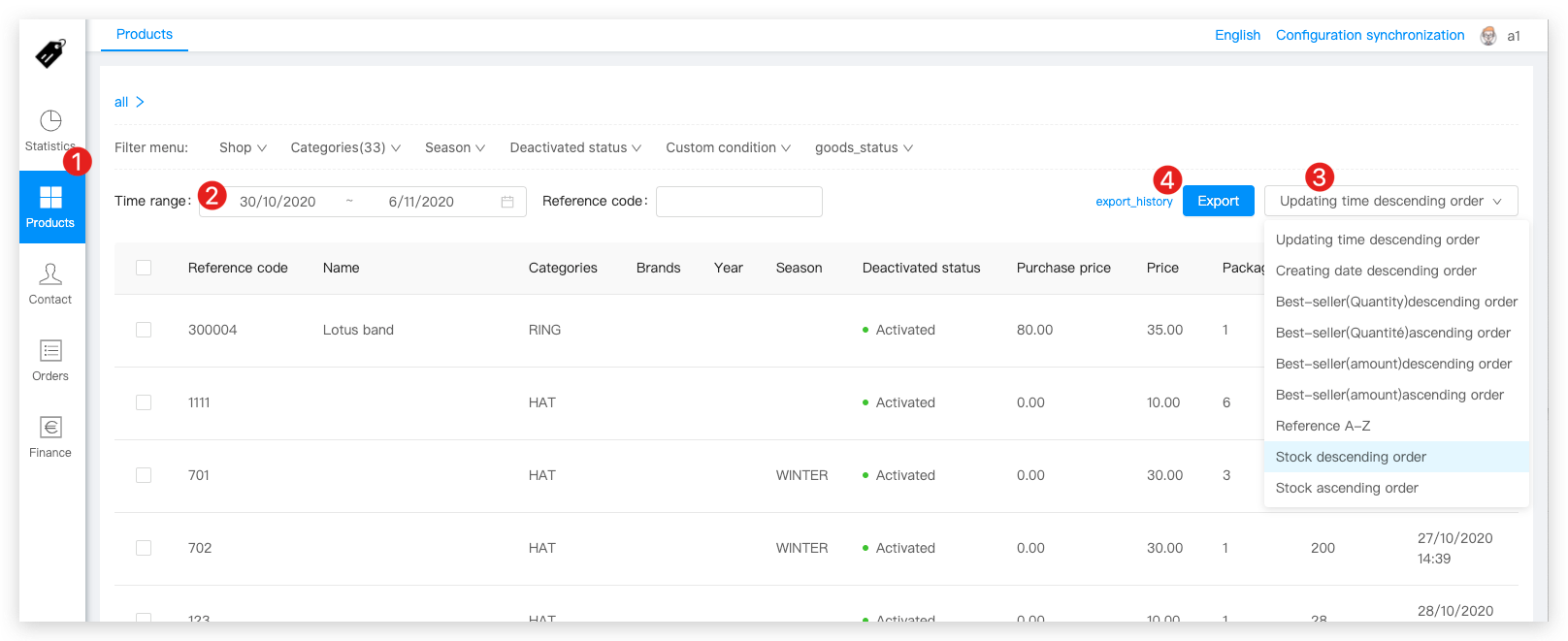
3. On the MC Web, click Products → Select Time range → Stock order → Export → Find the exported file in the "Export History" → Click "Download"

Q: How to export stock data with product images?
A: On the MC Web, Products page → Select Time range → Select the order → Click "Export” → Select "Excel (with image)" → Find the exported file in the "Export History" → Click "Download"


👇 Result:

The exported product data includes both product images and image URLs. You can use the image URLs to import the product images into MC Boss.
Q: How to export stock data by category?
A: On the MC Web, Products page → Select the time range → Select the category → Select the order → Click Export → Choose the export option → Go to Export History → Click Download to download the exported file.
